> For the complete documentation index, see [llms.txt](https://docs.web3forms.com/llms.txt). Markdown versions of documentation pages are available by appending `.md` to page URLs; this page is available as [Markdown](https://docs.web3forms.com/getting-started/integrations/google-sheets.md).
# Google Sheets
Automatically sync your Web3Forms submissions to a Google Sheets spreadsheet in real-time. This integration is perfect for organizing, analyzing, and sharing form data with your team.
{% hint style="info" %}
This is a **PRO feature** currently in **Beta**. You must have an active PRO plan subscription to use this integration.
{% endhint %}
## Features
* ✅ **Real-time Sync**: Form submissions are automatically added to your spreadsheet
* ✅ **Easy Setup**: Connect with just a few clicks using Google OAuth
* ✅ **Flexible Configuration**: Choose which spreadsheet and sheet to use
* ✅ **Automatic Headers**: Column headers are created based on your form fields
* ✅ **No Code Required**: No scripts or API keys needed
## Setup Instructions
### Step 1: Access the Integrations Tab
1. Log in to your [Web3Forms Dashboard](https://app.web3forms.com)
2. Select the form you want to connect
3. Navigate to the **Integrations** tab in your form settings
### Step 2: Enable Google Sheets Integration
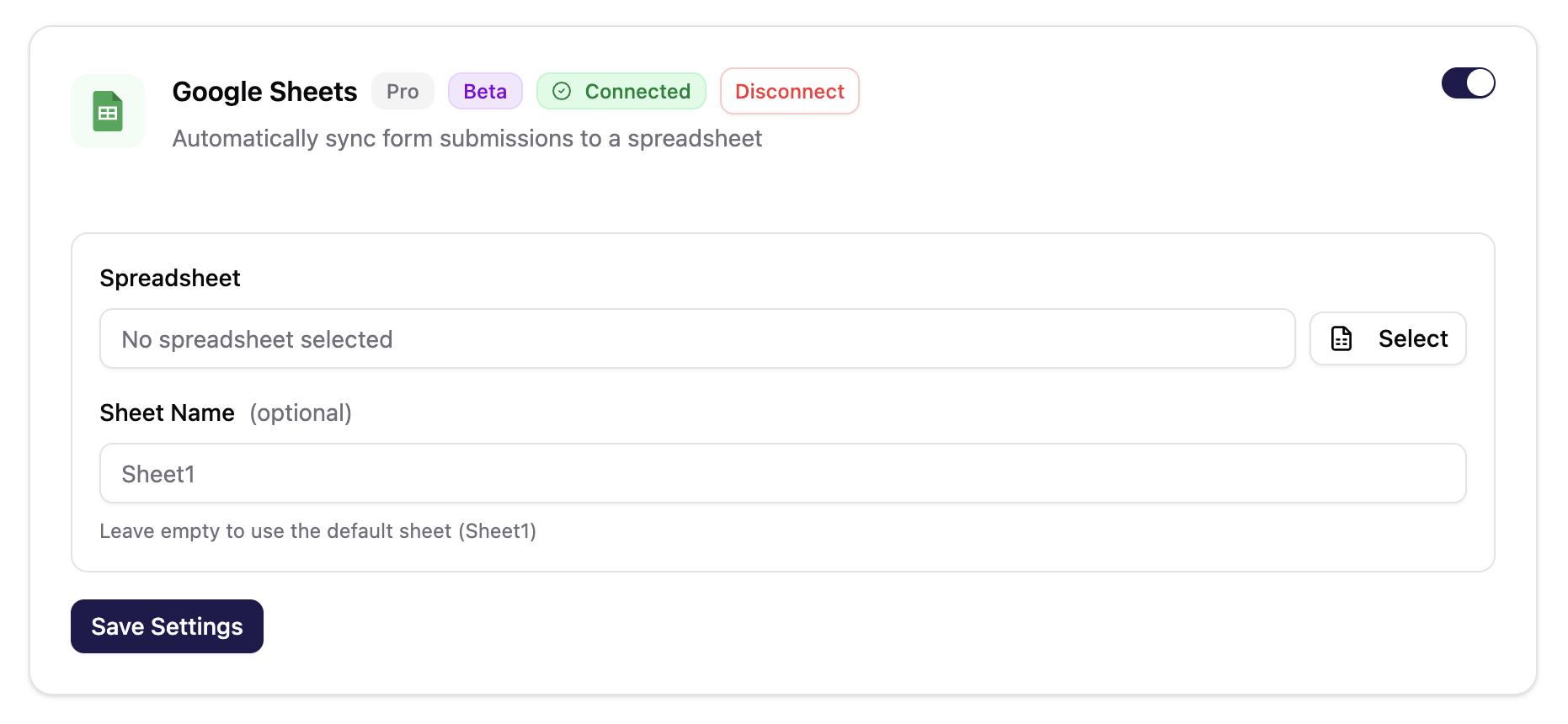
1. Find the **Google Sheets** integration card
2. Click "Connect" enable the integration
3. You'll be prompted to sign in with your Google account
4. Grant Web3Forms permission to access your Google Sheets
### Step 3: Configure Sheet Settings
**Spreadsheet Selection**
* Click the **Select** button to choose your destination spreadsheet
* You can select any existing spreadsheet in your Google Drive
**Sheet Name (Optional)**
* Enter the name of the sheet where data should be added
* Leave empty to use the default sheet (Sheet1)
### Step 5: Save Settings
Click the **Save Settings** button to activate the integration.
## How It Works
1. When a user submits your Web3Forms contact form, the data is processed
2. Web3Forms automatically sends the submission to your connected Google Sheets
3. A new row is added with all the form field data
4. Column headers are created based on your form field names (if not already present)
### Data Format
Each submission creates a new row with the following information:
* **Timestamp**: Date and time of submission
* **Form Fields**: All custom fields from your form (name, email, message, etc.)
## Example Spreadsheet Structure
Here's how your data might look in Google Sheets:
| Timestamp | Name | Email | Message | Phone |
| ------------------- | ---------- | ------------------ | --------------------- | ----------- |
| 2025-12-22 10:30 AM | John Doe | | Hello, I need help... | +1234567890 |
| 2025-12-22 11:45 AM | Jane Smith | | I have a question... | +0987654321 |
## Managing Your Integration
### Disconnect Google Sheets
To stop syncing submissions to Google Sheets:
1. Go to your form's Integrations tab
2. Find the Google Sheets integration
3. Click the **Disconnect** button
### Change Spreadsheet
To use a different spreadsheet:
1. Click the **Select** button again
2. Choose a new spreadsheet from your Google Drive
3. Update the sheet name if needed
4. Click **Save Settings**
## Troubleshooting
### No Data Appearing in Spreadsheet
* **Check Integration Status**: Ensure the toggle is enabled and shows "Connected"
* **Verify Sheet Name**: Make sure the sheet name matches exactly (case-sensitive)
* **Check Permissions**: Ensure Web3Forms has access to your Google account
* **Test Your Form**: Submit a test entry and check if it appears
### Permission Errors
If you see permission errors:
1. Disconnect the integration
2. Reconnect and re-authorize your Google account
3. Make sure the spreadsheet isn't restricted or protected
### Data Not Formatting Correctly
* Column headers are created from form field names
* Make sure your form fields have descriptive `name` attributes
* Avoid special characters in field names for best results
## Privacy & Security
* Web3Forms uses secure OAuth 2.0 for Google account authentication
* Only necessary permissions are requested (selected spreadsheet access only)
* Your access tokens are encrypted and stored securely.
* You can revoke access anytime from your [Google Account Settings](https://myaccount.google.com/permissions)
## Related Integrations
* [Webhook Integration](/getting-started/pro-features/webhooks.md) - Send data to custom endpoints
* [Zapier Integration](/getting-started/integrations/soon/zapier.md) - Connect with 5,000+ apps
* [Airtable Integration](/getting-started/integrations/soon/airtable.md) - Alternative database solution
---
# Agent Instructions
This documentation is published with GitBook. GitBook is the documentation platform designed so that both humans and AI agents can read, navigate, and reason over technical content effectively. Learn more at gitbook.com.
## Querying This Documentation
If you need additional information that is not directly available in this page, you can query the documentation by asking a question.
Perform an HTTP GET request on the following URL with the `ask` and `goal` query parameters:
```
GET https://docs.web3forms.com/getting-started/integrations/google-sheets.md?ask=&goal=
```
`ask` is the immediate question: it should be specific, self-contained, and written in natural language.
`goal` is what the user is ultimately trying to achieve, the reason they need the answer. Sharing it helps GitBook give you a better, more relevant answer. A goal is most helpful when it describes the outcome the user wants rather than restating the question. For example, with `ask=how do I create an API token`, a goal like `automate deployments from our CI pipeline` lets GitBook tailor the answer to that use case.
The response will contain a direct answer to the question and relevant excerpts and sources from the documentation.
Use this mechanism when the answer is not explicitly present in the current page, you need clarification or additional context, or you want to retrieve related documentation sections.