> For the complete documentation index, see [llms.txt](https://docs.web3forms.com/llms.txt). Markdown versions of documentation pages are available by appending `.md` to page URLs; this page is available as [Markdown](https://docs.web3forms.com/getting-started/integrations/webhooks.md).
# Webhooks
Send form data to any URL endpoint via HTTP POST. Webhooks enable you to connect Web3Forms with thousands of applications and services, creating powerful automation workflows without writing code.
{% hint style="info" %}
This is a **PRO feature**. You must have an active PRO plan subscription to use this feature.
{% endhint %}
## What are Webhooks?
Webhooks allow you to automatically send form submission data to any HTTP endpoint in real-time. This opens up endless possibilities for integrating with:
* **Automation Platforms**: Zapier, Make (Integromat), n8n, Pipedream
* **CRM Systems**: Salesforce, HubSpot, Pipedrive
* **Email Marketing**: Mailchimp, ConvertKit, SendGrid
* **Project Management**: Asana, Trello, ClickUp
* **Databases**: Airtable, MongoDB, PostgreSQL
* **Communication**: Slack, Discord, Microsoft Teams
* **Custom Applications**: Your own backend services
## Key Features
* ✅ **Universal Compatibility**: Works with any service that accepts HTTP POST requests
* ✅ **Real-time Delivery**: Data is sent immediately after form submission
* ✅ **Secure Transmission**: Data is sent over HTTPS
* ✅ **Automatic Retry**: Failed webhooks are retried automatically
* ✅ **Clean Payload**: Sensitive data is removed before sending
## Setup Instructions
### Step 1: Create a Webhook URL
Webhook URLs can be created using various platforms:
**Recommended Platforms:**
* [**Zapier**](https://zapier.com/) - Connect with 5,000+ apps (Commercial)
* [**Make**](https://www.make.com/) (formerly Integromat) - Advanced automation (Free tier available)
* [**Pipedream**](https://pipedream.com/) - Developer-friendly automation (Generous free plan)
* [**n8n**](https://n8n.io/) - Open-source automation (Self-hosted or cloud)
{% hint style="success" %}
We recommend **Pipedream** if you're technical, as it offers a generous free plan and provides excellent debugging tools.
{% endhint %}
### Step 2: Access the Integrations Tab
1. Log in to your [Web3Forms Dashboard](https://app.web3forms.com)
2. Select the form you want to connect
3. Navigate to the **Integrations** tab in your form settings
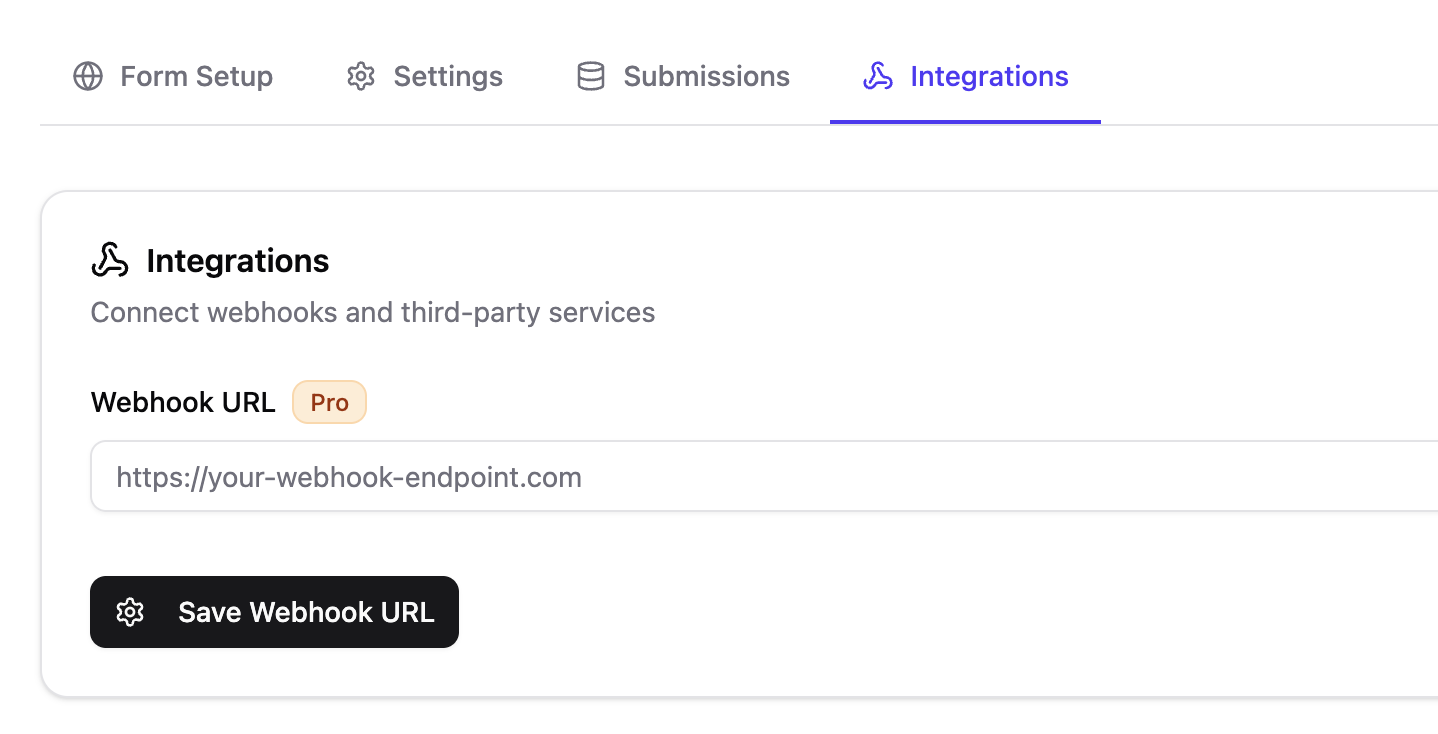
### Step 3: Enable Webhook Integration
1. Find the **Webhook** integration card
2. Toggle the switch to enable the integration
3. Paste your webhook URL in the **Webhook URL** field
4. Click the **Save Settings** button
**\[SCREENSHOT PLACEHOLDER: Webhook integration card in Web3Forms dashboard]**
Webhook Integration Settings
## Webhook Payload Structure
Web3Forms sends form data as a JSON payload via HTTP POST request. The payload includes all form fields submitted by the user.
### Request Headers
```
Content-Type: application/json
User-Agent: Web3Forms/1.0
```
### Example Payload
```json
{
"name": "John Doe",
"email": "john@example.com",
"phone": "+1234567890",
"message": "Hello, I'm interested in your services...",
"subject": "New Contact Form Submission",
"from_name": "My Website",
"submittedAt": "2025-12-22T10:30:00.000Z"
}
```
### What's Included
* **All form fields**: Any field you include in your form (name, email, message, etc.)
* **Custom fields**: Any additional fields you've added
* **Metadata fields**: Subject, from\_name, and other configuration fields
### What's Excluded
For security and privacy, the following data is **removed** before sending:
* `access_key` - Your Web3Forms access key
* `apikey` - Legacy API key field
* `attachment` - File attachments (separate handling)
* `botcheck` - Anti-spam honeypot field
* `recaptcha_response` - CAPTCHA tokens
## Use Cases
### CRM Integration
Automatically add leads to your CRM:
1. Create a webhook in Zapier or Make
2. Connect to your CRM (Salesforce, HubSpot, etc.)
3. Map form fields to CRM fields
4. Leads are added automatically
### Database Storage
Store submissions in a database:
* Send to Airtable for a visual database
* Use Pipedream to insert into PostgreSQL or MongoDB
* Create custom data warehousing solutions
### Team Notifications
Send notifications to multiple platforms:
* Slack channels for team awareness
* Discord servers for community projects
* Microsoft Teams for enterprise environments
* Email notifications to multiple recipients
### Email Marketing
Add subscribers to your email list:
* Connect to Mailchimp, ConvertKit, or SendGrid
* Automatically create contact lists
* Trigger welcome email sequences
### Custom Processing
Build custom workflows:
* Validate and enrich data
* Perform background processing
* Trigger custom business logic
* Integrate with proprietary systems
## Popular Integrations
### Zapier
Connect Web3Forms with 5,000+ apps using Zapier:
1. Create a new Zap in Zapier
2. Choose **Webhooks by Zapier** as the trigger
3. Select **Catch Hook**
4. Copy the webhook URL
5. Paste it in Web3Forms webhook settings
6. Test and configure your automation
[Learn more about Zapier integration →](/getting-started/integrations/soon/zapier.md)
### Make (Integromat)
Build complex automation scenarios:
1. Create a new Scenario in Make
2. Add a **Webhook** module as the trigger
3. Choose **Custom webhook**
4. Copy the webhook URL
5. Add it to Web3Forms
6. Build your automation workflow
[Learn more about Make integration →](/getting-started/integrations/soon/integromat.md)
### Pipedream
Developer-friendly automation with code:
1. Create a new Workflow in Pipedream
2. Select **HTTP / Webhook** as the trigger
3. Copy the endpoint URL
4. Add it to Web3Forms
5. Use pre-built actions or write custom Node.js code
### n8n
Open-source workflow automation:
1. Create a new Workflow in n8n
2. Add a **Webhook** node
3. Configure the webhook path
4. Copy the webhook URL
5. Connect it to Web3Forms
6. Build your self-hosted automation
## Testing Your Webhook
### Test in Web3Forms
1. Submit a test entry through your form
2. Check if the webhook was triggered
3. Verify data arrived at your endpoint
### Debug with Webhook Testing Tools
Use these tools to inspect webhook payloads:
* [**Webhook.site**](https://webhook.site/) - Free webhook testing
* [**RequestBin**](https://requestbin.com/) - Inspect HTTP requests
* [**Pipedream RequestBin**](https://pipedream.com/requestbin) - Developer-focused debugging
### Check Delivery Status
Monitor webhook delivery in your automation platform:
* Check execution logs in Zapier/Make/Pipedream
* Review error messages if delivery fails
* Verify payload structure matches expectations
## Troubleshooting
### Webhook Not Triggering
* **Verify URL**: Ensure the webhook URL is correct and accessible
* **Check Status**: Make sure the integration is enabled (toggle on)
* **Test Endpoint**: Use webhook testing tools to verify your endpoint works
* **Check Logs**: Review logs in your automation platform
* **Firewall**: Ensure your endpoint isn't blocked by a firewall
### Invalid URL Error
* Webhook URL must start with `https://`
* URL must be publicly accessible
* Don't include spaces or invalid characters
* Test the URL in a browser or curl command
### Data Not Received
* Check the payload structure in your automation platform
* Verify field names match what you expect
* Ensure your endpoint is processing JSON correctly
* Check for rate limits on your receiving service
### Timeout Errors
* Webhook endpoints must respond within 30 seconds
* If processing takes longer, return 200 OK immediately
* Process data asynchronously in the background
## Advanced Configuration
### Multiple Webhooks
To send data to multiple endpoints:
1. Use one webhook URL in Web3Forms
2. Configure your automation platform to forward to multiple services
3. Example: Zapier → Send to both Slack and Airtable
### Data Transformation
Transform data before sending to your destination:
* Use automation platforms to map and modify fields
* Filter submissions based on conditions
* Enrich data with external API calls
* Format data for specific integrations
### Conditional Logic
Send to different endpoints based on form data:
* Use automation platforms to add conditional routing
* Example: Send enterprise leads to sales team, others to support
* Filter spam or test submissions
### Error Handling
Handle webhook failures gracefully:
* Set up retry logic in your automation platform
* Create error notifications for failed webhooks
* Log failures for debugging
* Implement fallback endpoints
## Security Best Practices
### Protect Your Webhook URLs
* Never share webhook URLs publicly
* Regenerate URLs if compromised
* Use URL parameters for authentication if supported
* Monitor webhook activity for unusual patterns
### Validate Incoming Data
In your webhook handler:
* Validate data types and formats
* Sanitize input to prevent injection attacks
* Check for required fields
* Implement rate limiting
### Use HTTPS
* Always use HTTPS endpoints
* Never use HTTP for webhooks
* Ensure SSL certificates are valid
## Related Integrations
* [Google Sheets Integration](/getting-started/integrations/google-sheets.md) - Direct spreadsheet sync
* [Slack Integration](/getting-started/integrations/slack.md) - Team notifications
* [Discord Integration](/getting-started/integrations/discord.md) - Community notifications
* [Telegram Integration](/getting-started/integrations/telegram-notifications.md) - Mobile notifications
## Additional Resources
* [Zapier Webhooks Documentation](https://zapier.com/page/webhooks/)
* [Make Webhooks Guide](https://www.make.com/en/help/tools/webhooks)
* [Pipedream Workflows](https://pipedream.com/docs/workflows/)
* [n8n Documentation](https://docs.n8n.io/)
## Need Help?
If you encounter any issues with webhooks:
* Email
* [Contribute to our documentation on Github](https://github.com/surjithctly/web3forms-docs)
* Check the documentation of your automation platform